Using MathJax with Octopress

Update in 2026: This method did not survive my move to Pelican. The necessary JS was not move over correctly, and, even more importantly, the MathJax framework this post uses (cdn.mathjax.org) was shut down several years ago. Instead, I’m trying out this jsDelivr alternative. I’m not changing this post overall, except to update the backend to the new system.

–

I’ve been meaning to try and implement MathJax on this website for a while now. For including math equations on a website, MathJax is probably one of the more elegant ways to do it. I can write equations in TeX format, and MathJax renders the equations properly for you!

Finally, in the last couple of days I’ve been forced to get around to it, thanks to a new post that I’m writing that includes a little bit of math. So anyway, I just wanted to jot down that process.

The thing with MathJax is that it’s meant to, and does, work with HTML. But since I’m working with Octopress and Markdown, I have to ensure that the conversion from Markdown to HTML produces no unwanted syntactical errors for MathJax. To get around this problem, Zac Harmany (I hope I got the name right) suggests tweaking the Markdown rendering engine to Pandoc, so that the conversion works as desired. I’m sure that works great, but I had no intention of tweaking my Markdown conversion engine. Instead, I discovered a nifty ruby bundle (here) that serves a great purpose.

Next, the typical MathJax “installation” involves adding a line in the <head> section of your Octopress theme (Add it to %octopress_root%/source/_includes/custom/head.html), so that when every page loads, the necessary Javascript files are also loaded, ready to render your equations. I did not want the Javascript to execute to load along with all my pages, given that I don’t expect to have equations in all my posts. Instead, I’ve included the call to the script in the <body> of the post, i.e. in the meat of the post itself. Remember that the declaration needs to be before your first equation.

I also contemplated downloading the MathJax distribution and hosting it locally on my own server, but that did not work at all. There are way too many files to be uploaded (each file is small; the total package is ~50MB; there are too many files, though) and it just took forever to upload to my server until I just gave up. I’ll revisit that option if I think using MathJax’s own servers is not working well—which I doubt will happen.

With those details, here’s how I set things up:

  • Install the verbatim.rb plugin from this Github repository. To do this, simply download the file (‘Gist’ in Github parlance) and place it in %octopress_root%/plugins. When inserting equations, there’s a syntax to using this plugin; I’ll demo it below.

  • Create a MathJaxLocal.js file at %octopress_root%/source/javascripts/ to add local configurations for MathJax. Note that the last line of the code must point to the full path of the local file, in my case http://arnabocean/javascripts/MathJaxLocal.js

    Here’s what my MathJaxLocal.js looks like (I started with Zac Harmany’s file and modified to suit my needs.):

    MathJax.Hub.Config({
        jax: ["input/TeX","output/HTML-CSS"],
        extensions: ["tex2jax.js","MathMenu.js","MathZoom.js"],
        tex2jax: 
            {
                inlineMath: [ ['$','$'], ['\\(','\\)'] ],
                displayMath: [ ['$$','$$'], ['\\[','\\]'] ],
                skipTags: ["script","noscript","style","textarea","pre","code"],
                processEscapes: true
            },
        TeX:
            { 
                equationNumbers: { autoNumber: "AMS" },
                TagSide: "left",
    
            },
        "HTML-CSS": { availableFonts: ["TeX"] }
        });
        MathJax.Ajax.loadComplete("http://arnabocean.com/javascripts/MathJaxLocal.js");
    
  • Declare the location of the MathJax files. The easiest thing to do is to use MathJax’s own servers. However, in addition to just their servers, you’ll have to link to your own local config file as well, so we’ll add both of these at the same time. In the main body of your markdown post (preferably after the “Read More” fold), add the following:

    <script type="text/javascript"
    src="http://cdn.mathjax.org/mathjax/latest/MathJax.js?config=TeX-AMS-MML_HTMLorMML,http://arnabocean.com/javascripts/MathJaxLocal.js">
    </script>
    

In the above, the first link points to MathJax servers, the second points to my own config file.

And that’s basically it! Now you’re all set to write beautiful equations. Here’s a demo:

<!-- MathJax configuration -->
<script type="text/javascript" src="http://cdn.mathjax.org/mathjax/latest/MathJax.js?config=TeX-AMS-MML_HTMLorMML,http://arnabocean.com/javascripts/MathJaxLocal.js">
</script>
<!-- End MathJax Configuration -->

{% raw %}{% verbatim tag:p %}{% endraw %}
\[ 
f(x)= a_0 + a_1\sin(x) + a_2\sin(2x) + ...
\]

\[  
+b_1\cos(x) + b_2\cos(2x) + ...
\]

\[
f(x)=a_0+\sum_{k=1}^\infty\big( a_k\cos(kx)+b_k\sin(kx) \big)
\]
{% raw %}{% endverbatim %}{% endraw %}

And here’s what that would look like:

\[ f(x)= a_0 + a_1\sin(x) + a_2\sin(2x) + … \] \[ +b_1\cos(x) + b_2\cos(2x) + … \] \[ f(x)=a_0+\sum_{k=1}^\infty\big( a_k\cos(kx)+b_k\sin(kx) \big) \]

There’s still a lot of more that I need to find out, and from the looks of it, Zac’s website is a great resource. I’ll add more posts if I find anything useful that I end up using.

My scientific writing workflow

I am not fond of MS-Word. Correction: I cannot really tolerate MS-Word, and the only times I really use it are for work, where documents must be shared, modified, commented upon, and tracked for changes between multiple authors, contributors and edit cycles. For those particular circumstances there really isn’t another viable alternative to MS-Word, is there.

But of course, the criteria for my own scientific writing are very different. The only sharing and discussion is with my dissertation adviser, and I can easily handle one other contributor without needing MS-Word. So, of course, I’ve moved as far away from that bloated, cranky piece of software as I can—which is to say, completely away.

Instead, here’s what I use.

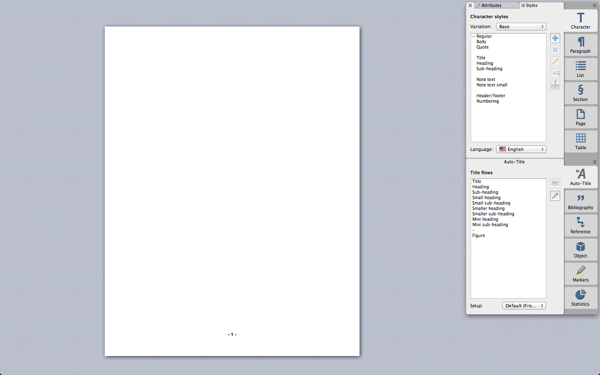
My word processor of choice on the Mac is Mellel. It’s beautiful, runs smoothly, and is a joy to use. Its listed feature set is vastly inferior to that of Word, but the features it does carry are executed extremely well. After all, what use are a plethora of features that really make the program bloated and difficult to use? (Please, go read that article; it’s cathartic for frustrated Word-users.) Plus, these features are more than sufficient to meet my needs (and, I think, that of most other scientic writers). I have not felt the need—yet—to incorporate the math rendering excellence of LaTeX, and for all other purposes, Mellel works great.

Mellel in Full-screen mode

Mellel in Full-screen mode.

But here’s the thing. I don’t like writing in word processors. Even in great ones such as Mellel, you’re distracted every once in a while by the formatting, and how the headings are looking, and whether a paragraph should flow on to the next page, and so on. Plus, I’ve developed a universal distaste for proprietary document formats, and this extends as much to Mellel’s proprietary format as to Word’s. I’d like to read and make sense of my documents irrespective of which software I happen to have available for use.

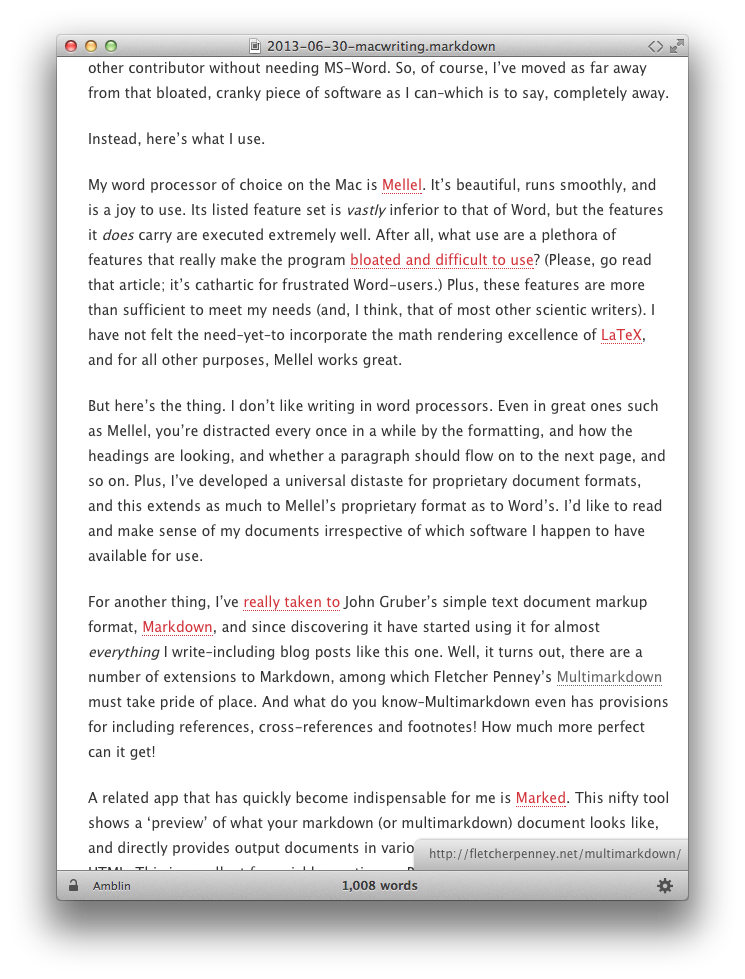
For another thing, I’ve really taken to John Gruber’s simple text document markup format, Markdown, and since discovering it have started using it for almost everything I write—including blog posts like this one. Well, it turns out, there are a number of extensions to Markdown, among which Fletcher Penney’s Multimarkdown must take pride of place. And what do you know—Multimarkdown even has provisions for including references, cross-references and footnotes! How much more perfect can it get!

A related app that has quickly become indispensable for me is Marked. This nifty tool shows a ‘preview’ of what your markdown (or multimarkdown) document looks like, and directly provides output documents in various formats, including PDF, RTF and HTML. This is excellent for quickly creating an RTF document to send to my adviser for review.

Marked preview of this blog post

Marked preview of this blog post.

If you’ve been keeping count, the only piece of software necessary for scientific writing that I haven’t mentioned is a citation/bibliography tool. Endnote is a popular choice for many, and I’m sure it’s pretty good, but there’s a couple other excellent Mac apps for this–Bookends and Sente. Based on online reviews and forums, I ended up selecting Bookends a few years ago, and I haven’t regretted the decision. As a bonus, Bookends integrates perfectly with Mellel, making life very easy indeed. (I noticed while writing this post that Sente’s pricing terms seem to have changed quite a bit since I was researching it, and for all I’d heard, Sente is excellent too.)

There’s another Mac writing tool that’s great for writing long documents, especially where the document is divided into chapters and sections. This is Scrivener. Plus, the basic document format for Scrivener is plain text, which straightaway satisfies my wariness for proprietary formats. Scrivener is also excellent, and would have suited my type of scientific writing perfectly, except for one solitary reason. It doesn’t play well with Bookends. To use Bookends, you have to export your document to an RTF file, and then use Bookends. This means you’re once again left with an extra step of having to include formatting. Not good for me, and Mellel wins. (Scrivener, on the other hand, is the only app in my list that is also available for Windows. If you’re a Windows user, this is an excellent app that you should certainly explore.)

So now that we’ve identified the pieces of software that I use, here’s my workflow.

  • Choose any text-editor (Sublime Text, BBEdit, Text Wrangler, or even the ever worthy, simple TextEdit), and write the actual text in Multimarkdown format. Include citations as required; for the ‘citation’ portion, use any label of your choice, and for the ‘link’ portion, include the identifier string from Bookends that you must use to finally automatically create the bibliography. This way, when I use Marked to export to RTF, my citations are already automatically shown as citations, even though I haven’t done anything with Bookends yet. The bibliography section at the end looks funky, but that’s not a problem with documents in progress.
  • When ready, export the document as RTF, and copy-paste the entire contents into a new Mellel document.
  • For each citation, replace the custom label I had chosen with the Bookends identifier. This is a simple matter of doing a ‘Find-Replace-All’ for each citation.
  • Use Bookends to add the bibliography!

Here are the advantages to this scheme:

  • No use of MS-Word, but you’re able to export to RTF or .doc format, if needed, from Mellel.
  • You’re always able to deal with plain text for all your documents, up until the very last stage where page-setting must come into the picture.
  • Even for a document in progress, it takes only a moment to create a perfectly readable document, via Multimarkdown, that includes inline citations instead of the ugly Bookends identifier.

If you don’t care about using plain text formats, or are simply not comfortable or don’t want to get used to Markdown, just replace MS-Word with Mellel. You can still do all your document writing in a word processor, just like in Word, and you’ll quickly find that it’s way more efficient to use Mellel. You’ll love it—guaranteed.


Using Markdown by John Gruber

I’ve recently discovered Markdown by John Gruber, and it’s a nifty (and absolutely awesome) writing tool. If you prefer (like I do) doing the bulk of your writing in a text editor—rather than a word processor—Markdown is quite incredible.

And if you do all your writing in a word processor, try this out, seriously. Write everything up in a text file, without bothering about fonts or styles or page margins, and then import the document into your favorite word processor for styling. Personally, it’s less distracting, and more productive.

Just so you know—this post is written in Markdown, and then uploaded as HTML.

What Markdown is, is essentially a new ‘markup’ syntax (notice the irony in the name?). For example, HTML is a markup language—you do all your writing in a text file, and then you tag the text to give it different effect. HTML has different tags for linking, adding text effects, and a bunch of other things. Do you use (or have heard of) LaTeX? That’s another markup language: you do all your writing in a text file and then add tags to style the document.

The difference in case of Markdown is this: the tags it uses are all punctuation marks and symbols that we normally use anyway, for example in email. How would you show emphasis in a chat message? By using *, like this: *emphasis*. In Markdown you’d use the exact same syntax. It makes your text readable in addition to having all the markup included.

The only problem with writing all your text in a text file is, you have to go back into your word processor and actually add the styling—for example, the headings must be bold and a larger font, and you have to add the styling for subscripts and superscripts. With Markdown, all that is already done in the text file itself!

The natural export from Markdown is HTML (it’s tailored for web writing), but it’s elementary to import the HTML styled text into a word processor. And until you actually do that, you still have a text file that perfectly readable! (In addition, I think there are scripts available that do a direct conversion from Markdown text to MS-Word format. There’s also the [Dingus page][linkdingus] at Daring Fireball) to see your Markdown handiwork.

Excellent creation, John Gruber. I’ve been a fan of your tech-writing for a while now; now I also know why Markdown is so popular.